Flaunt Data API
Programmatic, read-only access to your Flaunt data warehouse
Authentication
Send your API key as a Bearer token: Authorization: Bearer flnt_live_….
A key is scoped to either an organization (all its brands) or a single brand.
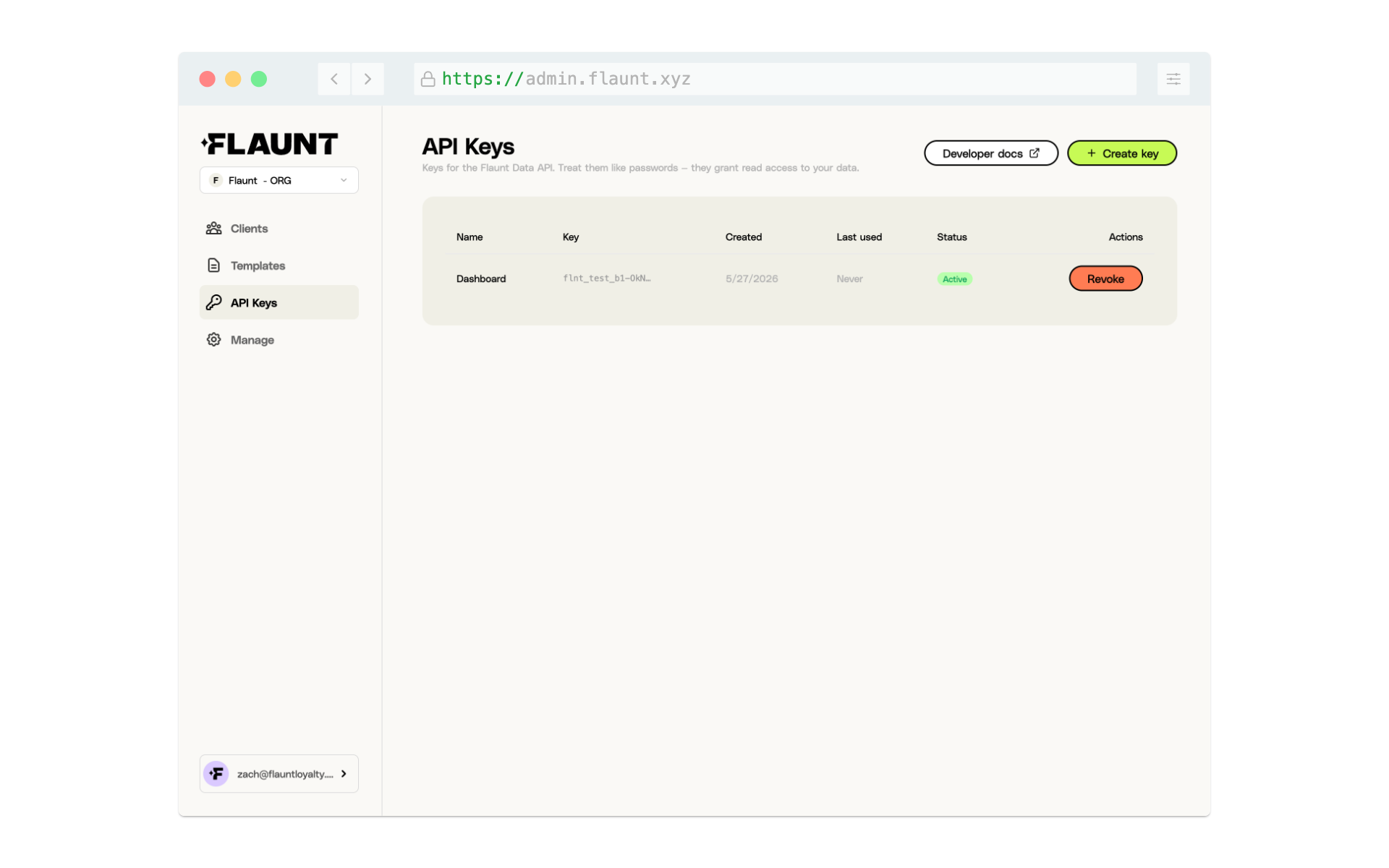
Getting an API key
In your Flaunt admin, open API Keys (in your organization or brand settings), click Create key, give it a name, and copy the secret — it's shown only once, so store it somewhere safe. You can revoke a key any time from the same screen.
Typical flow
GET /v1/data/brands— see which brands your key can access (each with itsdataset).POST /v1/data/query— run a read-onlySELECT/WITHquery, referencing tables as`flaunt-v1.<dataset>.<table>`.
Build from a proven query
Skip writing SQL — reuse queries already validated inside Flaunt:
GET /v1/data/reports— the reports (curated, repeatable definitions) your key can see.GET /v1/data/reports/{reportId}/queries— that report's queries; orGET /v1/data/queriesfor standalone saved queries.POST /v1/data/querywith{ "queryId": "…" }— run one by id. For a parameterized (report) query, add aperiod(e.g.{ "cadence": "MONTHLY" }) to get a fresh window each run.
Discovering tables
There's no separate schema endpoint — introspect with a query:
SELECT table_name, layer, data_source FROM `flaunt-v1.<dataset>.table_metadata`;
Pass "dryRun": true to estimate bytes scanned before running an expensive query.
MCP server (for AI agents)
Every endpoint below is also exposed over the Model Context Protocol at
https://api.flaunt.xyz/v1/data/mcp (Streamable HTTP). Authenticate one of two ways: OAuth
for claude.ai custom connectors (no key to manage — see Connecting claude.ai below), or the
same API key as a Bearer token for Claude Code, Claude Desktop, and headless clients.
In Claude Code (API key):
claude mcp add --transport http flaunt https://api.flaunt.xyz/v1/data/mcp \
  --header "Authorization: Bearer $FLAUNT_KEY"
In Claude Desktop (native connector GUI is OAuth-only, so bridge with mcp-remote), open
Settings → Developer → Edit Config and add to claude_desktop_config.json:
"mcpServers": { "flaunt": {
  "command": "npx",
  "args": ["-y", "mcp-remote", "https://api.flaunt.xyz/v1/data/mcp", "--header", "Authorization:${FLAUNT_AUTH}"],
  "env": { "FLAUNT_AUTH": "Bearer flnt_live_…" }
} }
The token goes in an env var because Claude Desktop splits each args entry on spaces; the
space-free Authorization:${FLAUNT_AUTH} avoids a truncated header. Restart Desktop afterward.
Tools mirror the REST operations 1:1: list_brands, list_reports, list_report_queries,
list_saved_queries, run_query, and report_data_issue. The same scoping, hardening, and
daily usage limit apply.
Call outs for Claude Desktop
- Make sure you download NodeJS if you don't already have it here: https://nodejs.org/en/download
- After you have updated your claude_desktop_config.json and downloaded NodeJS, make sure you fully restart/exit your Claude Desktop app.
- Get started by writing:
Check to see whether you have access to the Flaunt MCP server.
Then:
Run the Shopify Overview Dashboard report (or 'Monthly Lifecycle Performance Report' if you integrated Klaviyo) using Flaunt MCP server
Connecting claude.ai (OAuth)
claude.ai's custom connectors authenticate with OAuth, so there's no key to copy or store. Only Flaunt admins can connect — the connection uses your existing admin login and is limited to the brands you manage (read-only).
- In claude.ai, open Settings → Connectors → Add custom connector.
- Paste the MCP server URL
https://api.flaunt.xyz/v1/data/mcpand add it. - Claude opens a Flaunt authorization screen. Sign in with your Flaunt admin login if prompted, review what the assistant can access, and click Approve.
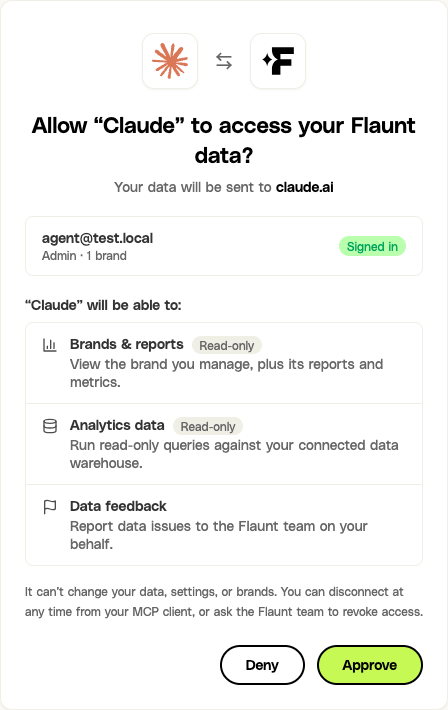
The connection then acts as you, with the same read-only access and brand scoping as your
admin account. Nothing changes on the API side — the OAuth token resolves to the same tools
(list_brands, run_query, …) and the same daily usage limits as an API key.
Managing connected assistants
See and revoke your connected assistants any time in your Flaunt admin under API Keys → Connected AI assistants. Revoking a connection cuts off its access immediately; the assistant has to reconnect and be re-approved to regain it. Access is also revoked automatically if you lose admin access to Flaunt.